How To Open Rar Files
Last Updated: Aug 23, 2019
Three Advantages of Rar Files vs Zip Files
- Compression - A Rar file is a compressed file similar to a zip file. Compressed files use mathematical techniques to store more data in a smaller area. Rar files are similiar to the well known ZIP file but with a few differences. Rar files are able to compress data more efficiently than ZIP files but with more compression time required.
- Split Files - Another innovation of Rar files and one that makes them especially popular on Usenet is that Rar compression technology is able to split and compress a large file into multipart (multivolume) archives.
- Unicode Filenames - Foreign language filenames (Unicode filename) are also supported with RAR compression.
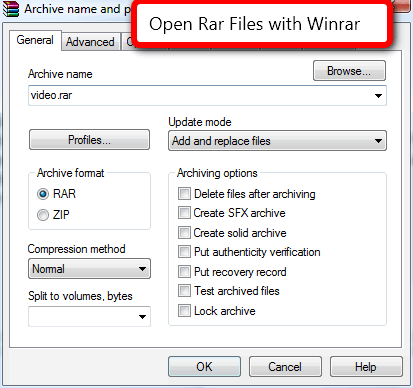
How To Open Rar Files
To open rar files use one of the recommended programs below.
- Windows
- http://www.rarlab.com/download.htm - for windows.
- Winrar is the best program available for both opening and creating rar files. Highest Recommendation if you are using windows.
- MacOSX
- https://theunarchiver.com
- It ’s a RAR extractor, it allows you to unzip files, and works with dozens of other formats.
- Linux
- http://www.rarlab.com/download.htm
The basic command line version of rar is free and available for all operating systems. If you are on windows however, definitely download Winrar as they offer a free trial that really never expires. Another nice feature of winrar is that winrar is available in many languages. Its your own choice but I would recommend associating winrar with all available compression files I believe winrar is an excellent program. At a minimum associated winrar with RAR files - see image below.
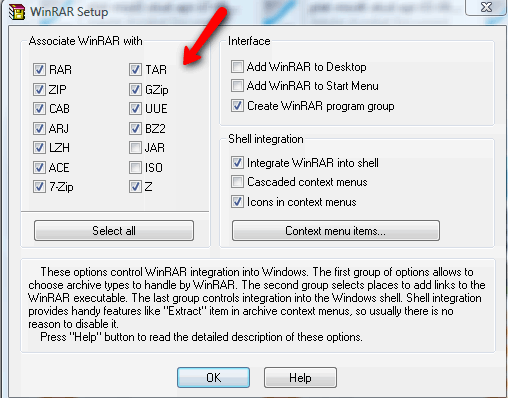
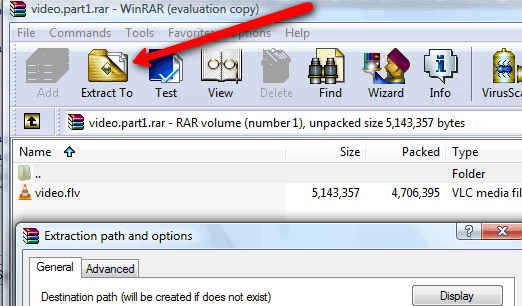
Once rar files are associated with winrar then opening a rar file is very easy - just double click on the first rar file of the series - typically look for a file that says File.part1.rar or File.rar and then click extract.
Rar Files Format Details
Rar files normally end with the extension rar. Occasionally you will find rar files in the pre 3.0 version specifiction in which file extension names start with .rar and then proceed with .r01, .r02, .r03, .r04, .etc. Finding rar files in this format is increasingly rare as version 3 has been out since 2000. The table below is illustrative of these file naming differences in case you run across pre 3.0 rar files on Usenet
| Old Rar Style | New Rar Sytle |
|---|---|
| File.rar | File.part1.rar |
| File.r00 | File.part2.rar |
| File.r01 | File.part3.rar |
Also as mentioned Rar files are particularly excellent for spliting up a file into pieces or volumes. Being able to split up a file into many volumes is very important for files transmitted on Usenet as file have to be split apart and embedded in Usenet messages.
Also of note, files stored in a Rar archive are compressed using “lossless compression.” meaning that file will be restored to their exact state. This is in contrast to the popular compressed formats such as mp3 or jpeg where music and image files are compressed using “lossy compression” and some of the image or sound Squality is lost during the compression process. .
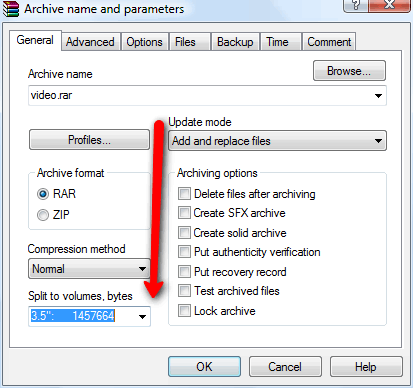
When creating a rar file you would just need to select volume size for splitting. See screenshot of winrar in action below.
How to Create Rar files
If you have integrated Winrar with the windows shell then just right click on the file that you would like to compress and choose rar as the archive format and select the number of bytes for split to volumes/bytes, Click Ok and your have created a set of RAR files. Your resulting set should look something like this image below.
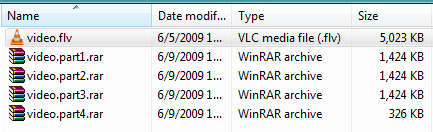
If you are using another program then creating a rar file might be a bit be slightly more complicated. Download Winrar here
Top Three Best Newsreaders Supporting Unrar
Making the unraring of files automatic when you use one of the top three Usenet Newsreaders recommended by UsenetReviewz.com
Newshosting

- Multi Platform Newsreader
- Bundled USENET service
- Quickly Scan Header Files
SABnzbd
- Free and Easy Binary Newsreader
- Popular NZB Downloader
- Responsive Web Interface
NZBGet
- Popular NZB Downloader
- Supports Multiple Platforms
- Web Interface